If you’re aiming to apply for scholarships under the MPTAAS (Madhya Pradesh Tribal Affairs Automation System), the very first step is registration. In this updated guide, we’ll walk you through each step so you can complete your registration confidently and correctly.
If you are a student applying for MPTAAS Scholarship 2025, create or check your Samagra ID first.
What is MPTAAS and Why Registration Matters
MPTAAS is the official scholarship portal by the Madhya Pradesh Tribal Welfare Department for SC, ST, and OBC students pursuing post‑matric education. The registration process unlocks access to scholarship applications, status tracking, and renewal options.
MPTAAS Pre-Registration Requirements
Make sure you have the following ready:
- Your Samagra ID
- Aadhaar Card (linked to your mobile)
- Contact‑linked Mobile Number
- Basic personal details (Name, DOB, Address)
- Caste/Income/Domicile certificates, if available
Step-By-Step Registration Guide
Step 1: Visit the Official MPTAAS Portal
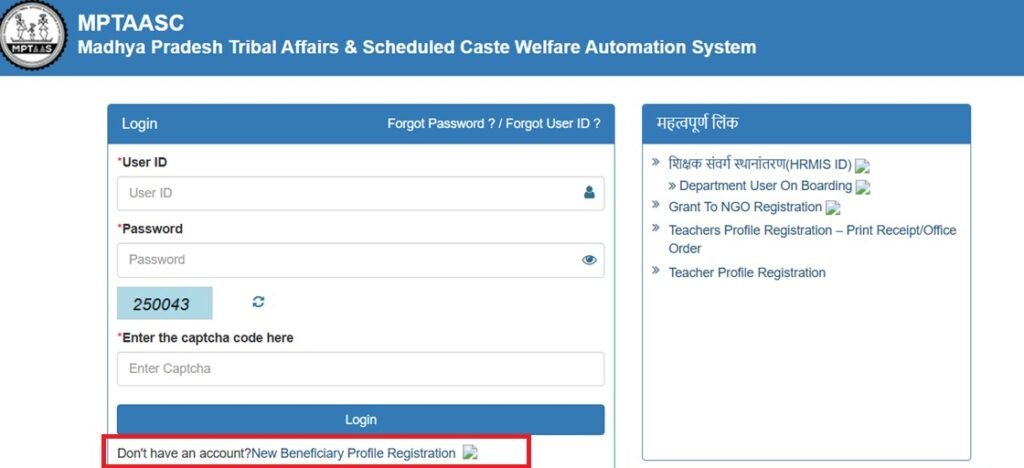
Go to the MPTAAS portal via mptaas.info or tribal.mp.gov.in/mptaas and click the “New Beneficiary Profile Registration” or “New Registration” button.
Step 2: Add Samagra ID & OTP Verification
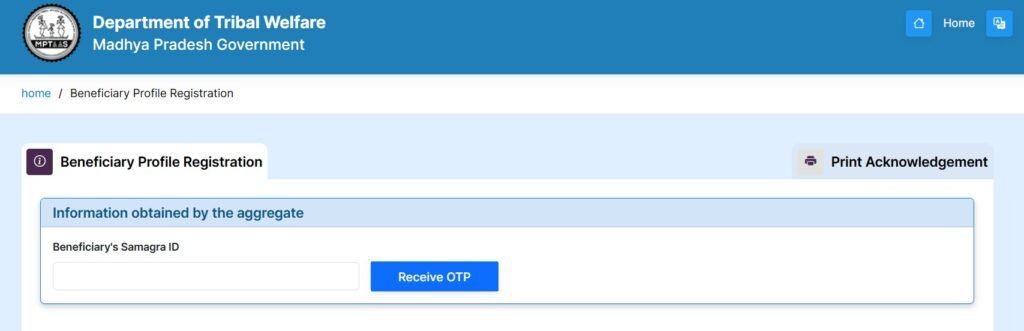
Enter your Samagra ID and click “Send OTP”. Verify the OTP received on your mobile
Step 3: Enter Your Basic Details
Fill in your:
- Name (as per Aadhaar)
- Date of Birth
- Father’s/Husband’s name
- Complete residential address (Village/City, District, PIN Code)
Step 4: Provide Additional Information
- Enter Aadhaar and Caste Certificate details
- Current mobile number (for future communication)
- Family income, Domicile, and other declarations as applicable
Step 5: Review & Create Login Credentials
After checking the entered details, choose a User ID and Password. These will be your portal login credentials later.
Step 6: Complete Registration
Once submitted, you’ll receive a confirmation with your credentials. Use these to log in, complete e‑KYC if needed, and start your scholarship application.
MPTAAS Registration
| Step | Action |
|---|---|
| 1 | Visit MPTAAS portal and click “New Registration” |
| 2 | Fill basic personal details (Name, DOB, Address) |
| 3 | Enter Samagra ID and verify via OTP |
| 4 | Provide Aadhaar, Caste, Income, and other details |
| 5 | Review and set User ID & Password |
| 6 | Submit and note credentials for login/applications |
MPTAAS Registration Common Issues & Pro Tips
- OTP Doesn’t Arrive? Ensure your mobile network is active and your number is correctly entered.
- Samagra ID Error? Double-check for typos or confirm validity via local council.
- Prepare Your Documents: Scan high-quality copies in advance to avoid delays.
- Use Google Chrome or a compatible browser for best experience.
What’s Next After Registration :
Once registered, you can:
- Log in using your credentials
- Apply for scholarships under PMS (Post Matric Scheme)
- Upload documents and submit your application
- Renew in future years and check status
FAQ
MPTAAS registration is the process of creating a profile on the Madhya Pradesh Tribal Affairs Automation System to apply for scholarships.
Visit tribal.mp.gov.in/mptaas, click “New Registration,” enter your Samagra ID, verify OTP, and create login credentials.
Aadhaar card, Samagra ID, caste certificate, domicile certificate, income certificate, and bank account details.
Yes, Samagra ID is mandatory to create a beneficiary profile.
Login with your user ID and password → go to “Track Application Status.”
Re-check your mobile number, ensure network is available, or try again after 5–10 minutes.
Some fields can be updated later; for critical changes, contact the district tribal welfare office.
When OTP Verification Fails During Registration
The Samagra ID OTP step is where most registration attempts stall. A few causes are easy to miss.
- Mobile number on Samagra record is outdated. If you changed your number since your family’s Samagra ID was created, the OTP goes to the old number. Update the mobile number on your Samagra profile first, which usually takes a day or two to reflect, before retrying registration.
- Multiple OTP requests in a short time. Requesting OTP repeatedly within a few minutes can trigger a temporary cooldown. Wait at least 10 minutes before trying again rather than requesting continuously.
- Samagra ID entered incorrectly. An 8-digit Family ID and a 9-digit Member ID look similar but are not interchangeable at this step. Double-check which one the registration form is asking for.
- Network interruption mid-verification. A dropped connection right after entering the OTP sometimes shows an error even though the OTP was correct. Refresh and re-check your registration status before re-registering from scratch.
If OTP issues persist after trying these, your institution’s scholarship cell can usually verify whether the problem is with your Samagra record or with the portal itself.
Registering After Changing District or Institution
Students who move districts for college, or transfer institutions mid-course, sometimes assume they need a fresh MPTAAS registration. In most cases you do not — your existing Profile ID stays valid, and you update your institution and address details from within your existing account rather than registering again. Creating a second registration under the same Samagra ID typically causes a duplicate-profile conflict that is harder to resolve than updating the existing one. If you are unsure whether your situation needs an update or a fresh registration, check with your new institution’s scholarship cell before submitting anything, since they can see whether a profile linked to your Samagra ID already exists.

