If you’re a student from Madhya Pradesh belonging to SC, ST, or OBC communities, you can access financial assistance through the MPTAAS portal (Madhya Pradesh Tribal Affairs Automation System). In this guide, you’ll learn how to log in securely to your MPTAAS account, recover forgotten login credentials, and navigate common issues.
Step-by-Step: How to Login to MPTAAS Portal
Step 1: Open the Official MPTAAS Website
Go to https://www.tribal.mp.gov.in/MPTAAS —the official gateway to all MPTAAS services. Click the “Login” button visible on the homepage.

Step 2: Enter Your Credentials
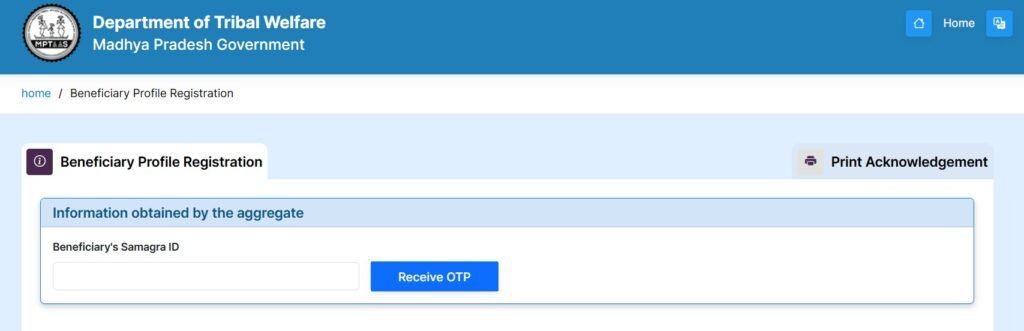
You can log in using:
- Samagra ID or
- Registered Mobile Number
Followed by your password
Step 3: Complete Captcha
Some users may need to fill in a captcha for added security. Just type the characters shown—case-sensitive.
Step 4: Access Your Mptaas Dashboard
Once logged in, you’ll enter your MPTAAS dashboard, where you can explore scholarship status, upload documents, manage profile updates, and more.
What to Do if You’ve Forgotten Your Password
Don’t worry—it’s easy to reset:
- Click on “Forgot Password” on the login page.
- Enter your User ID or Profile ID.
- Follow the on-screen instructions—typically involves OTP sent to your registered mobile number.
- Create a new password once verified.
Lost Your User ID? Here’s the Fix
- On the login screen, click “Forgot User ID?”
- Choose your recovery method: by Registered Mobile Number, Profile ID, or Samagra ID + Caste Certificate.
- Enter the required details and the portal will guide you through recovery.
Summary Table for Login to MPTAAS Portal
| Task | Simple Steps |
|---|---|
| Login | Visit https://www.tribal.mp.gov.in/MPTAAS → Click ‘Login’ → Enter Samagra ID/Mobile + Password |
| Forgot Password | Click Forgot Password → Enter ID → OTP Verification → Reset Password |
| Forgot User ID | Click Forgot User ID → Choose Recovery Option → Retrieve through OTP |
Pro Tips for Smooth Mptaas Login
- Always log in using an updated browser like Chrome or Firefox—older browsers can cause issues.
- If you’re facing repeated errors, try clearing your browser’s cache or switching to incognito mode.
- Make sure mobile number linked to your account is active and receiving OTPs.
FAQ
No, the MPTAAS portal currently supports only Samagra ID or registered mobile number for login.
Ensure your mobile number is active. If you still don’t receive it, contact the helpline or try again later.
You can apply for the scholarship, check your application status, upload documents, and renew your application directly from the dashboard.
Logging In on Mobile vs Desktop: What’s Different
The MPTAAS portal was built primarily for desktop browsers, and a few things behave differently on a phone.
- Captcha rendering. On smaller screens the captcha image sometimes loads cropped or blurry. Zooming in before entering it, rather than guessing, avoids a failed attempt that can temporarily lock the field.
- Session timeouts happen faster on mobile data. A slow or switching connection (moving between Wi-Fi and mobile data) can drop your session mid-form. Fill in longer sections while on a stable connection, and avoid switching networks mid-login.
- Document upload limits are the same either way. File size and format restrictions do not relax on mobile, so a photo straight from a phone camera is often too large — compress it before uploading rather than letting the upload fail silently.
- Use the browser, not a search app’s in-app browser. Opening the portal link inside a social media app’s built-in browser sometimes breaks the login form. Open it in Chrome or Firefox directly instead.
If you regularly switch between a phone and a laptop to manage your application, keep your login details written down somewhere you control rather than relying on one device’s saved passwords, since that is the most common reason students get locked out right before a deadline.
Staying Logged In Safely on a Shared Device
Cyber cafes and shared family computers are common ways students access MPTAAS, and a few habits protect your account. Always log out explicitly rather than just closing the browser tab, since an open session on a shared machine can let someone else view or edit your application. Clear the browser’s saved password prompt if one appears, and avoid using the “remember me” option on a device you do not control. If you suspect someone else accessed your account, reset your password immediately through the “Forgot Password” flow rather than waiting.

